
See which kind of post works best: compare your posts by type with tagging
Tag your posts by type, compare median views and comments per 1,000 views across the types, then read the comments behind the difference.
Updated 8 November 2026
The examples here come from a demo channel, a woodworker called Hollow Pine, with eight posts in the last 90 days. Five are tagged by type (builds, tutorials, live, shop life and tool reviews), two of them with two tags. Three aren't tagged yet.
Pick the types you want to compare
Write down the kinds of post you make again and again. Use the names you already think in: builds, tutorials, lives, reviews. A type with a single post in it gives you nothing to compare, so leave one-offs untagged until a second one exists.
A post can have more than one tag. Hollow Pine's router sled jig is a build and a tutorial, so it's tagged Builds and Tutorials. The live Q&A is tagged Live and Tutorials.
Tag your posts
Open the Posts page
Each post has a Tags column. A post with no tags shows Add tag.
Add a tag to a post
Select Add tag, or the + beside a post's tags. Check a tag in the list. For a new one, type its name, select Create tag, and select Create tag again in the dialog that opens.
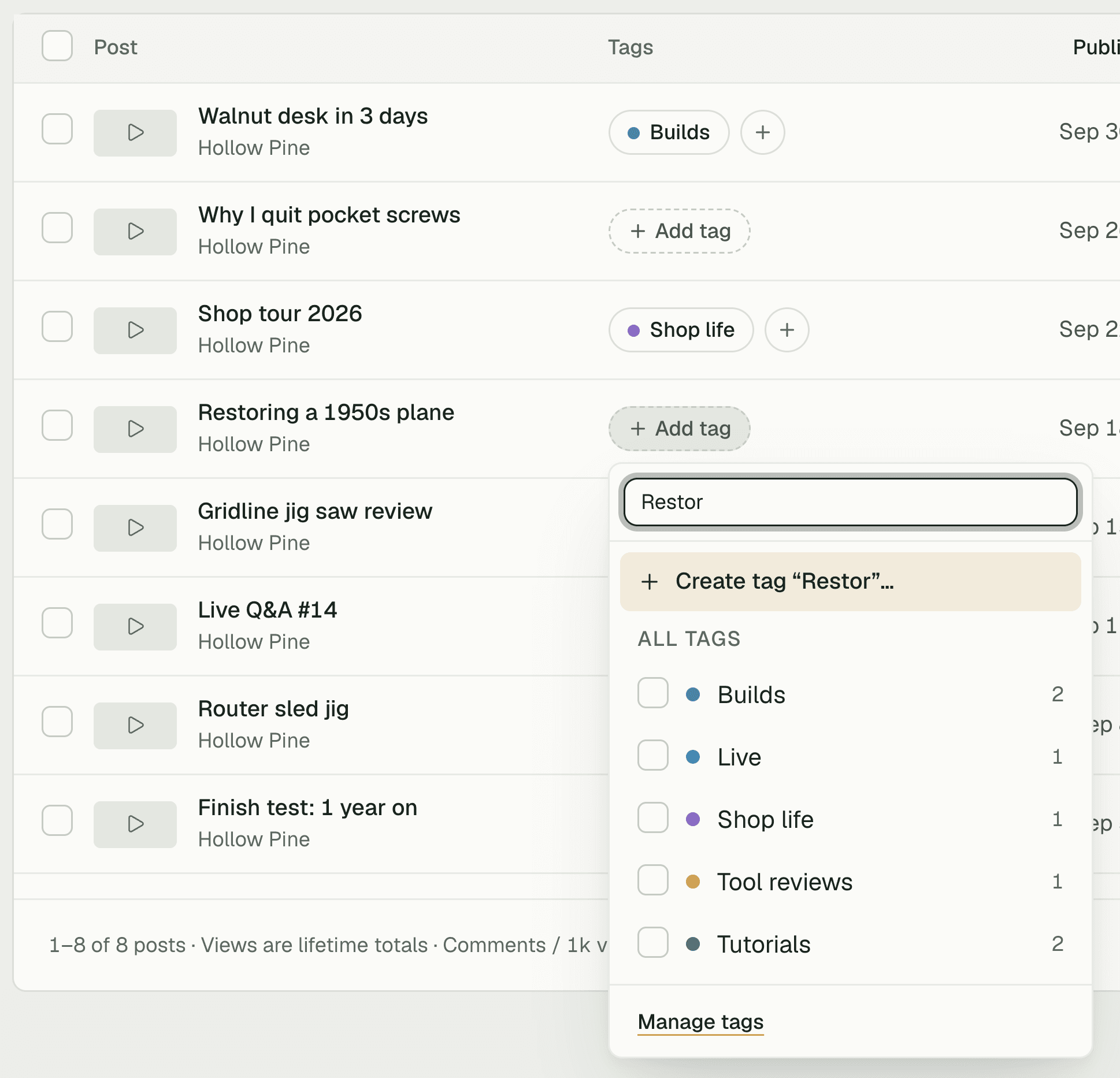
Demo dataType a name to create a tag, or check one you already have. Work down the list
Tag every post in the date range you want to compare. Posts you leave alone are grouped as Untagged, so you can see what's left.
Have Sentiment tag them for you
If you have a lot of posts, or keep publishing the same types, describe the type once and Sentiment tags posts that match it. Open Manage tags, choose a tag or New tag, and switch on Tag posts automatically.
Describe which posts belong
In Which posts belong, write what the posts have in common, the way you'd explain it to an editor. Sentiment matches it against each post's text, such as its title and description.
Choose how closely posts must match
Start with Balanced. Strict tags only clear matches, and Loose also tags posts that probably fit. After you run the preview, each choice shows how many posts it would tag.
Run the preview
Select Run preview to see which of your posts would get the tag. Change the description and run it again until the list looks right.
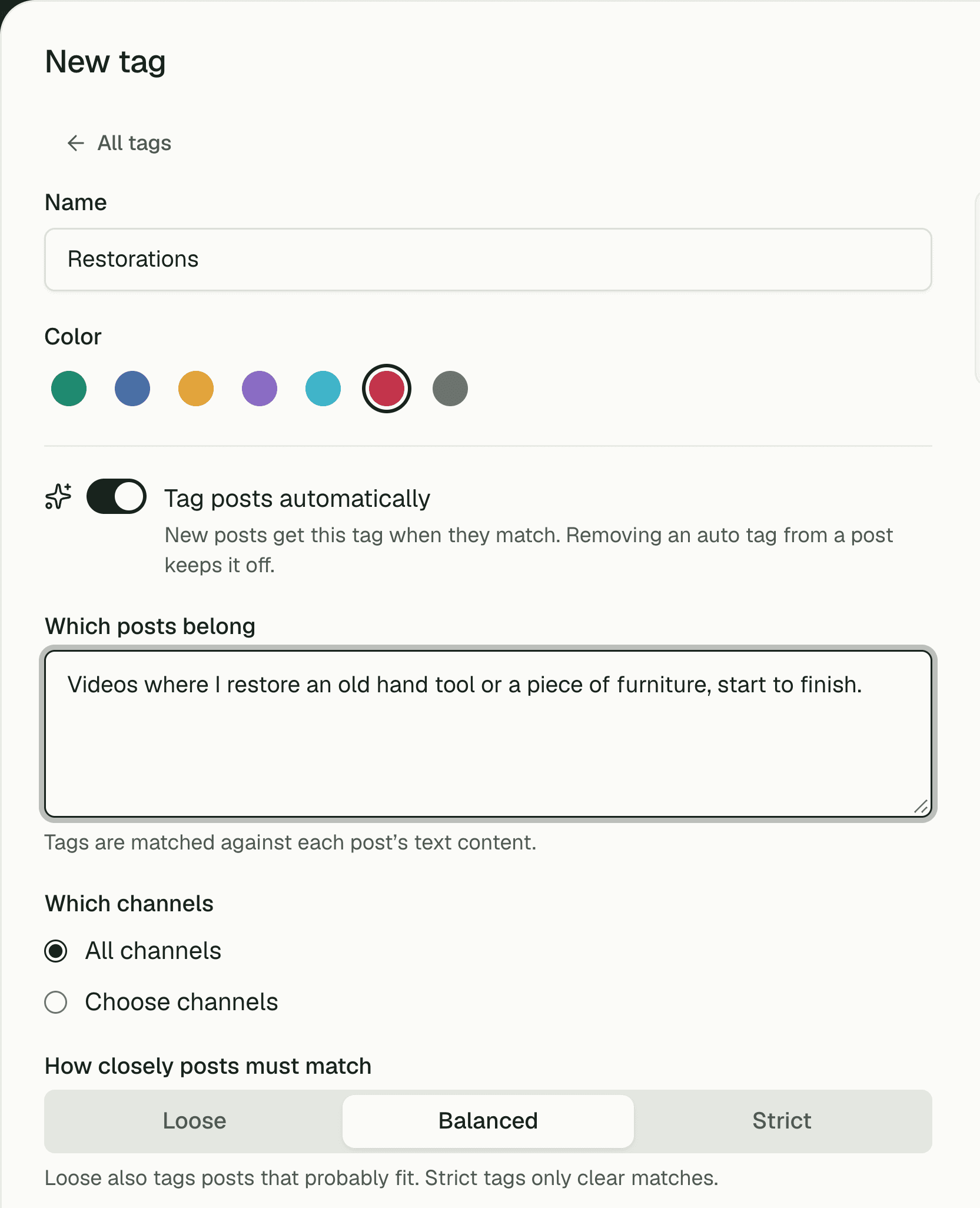
Demo dataDescribe the type in your own words, then pick how closely posts must match. Save
When you save, Sentiment asks whether to tag your existing posts too, or only new ones. If it puts the tag on a post that doesn't belong, remove it from that post. It stays off.
Compare the types
On the Posts page, switch from Posts to Tags. Set the date range at the top, and the channel if you have more than one. The chart shows the median views per post for each tag, with a line for all your posts. Half the posts in a type have more views than its median and half have fewer. With three or more posts, one breakout post can't drag a whole type up. With two, the median is their average.
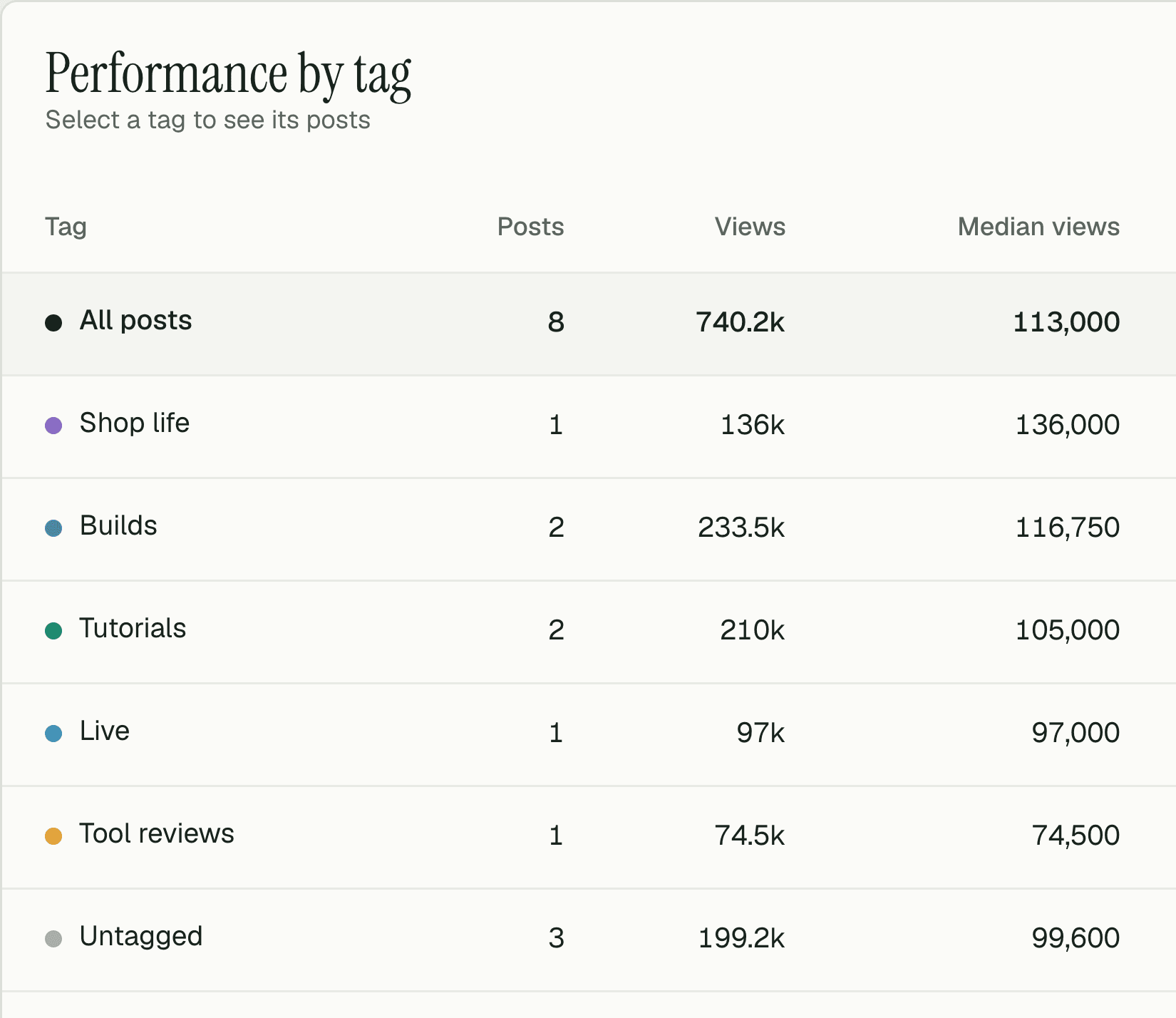
Under the chart, the Performance by tag table has a row for each tag, with its number of posts, views and median views.
Further right, Comments / 1k views shows which types get people talking, relative to how many watched. vs all posts is that figure minus the one for all posts: green above, red below. In the demo, Builds get 15.4 comments per 1,000 views, 0.7 above all posts, and Tutorials get 13.2, 1.5 below. To see this figure as bars, switch the chart to Comments / 1k views.
Views come from the platforms that report them. Instagram doesn't give Sentiment view counts, so Instagram posts count toward comments and replies but not toward views or comments per 1,000 views. When some posts in the range have no views, a line above the chart says how many the views come from.
Count the posts behind each number
Read the Posts column before you read anything else. Shop life is one post, so its median is that post's views. Builds and Tutorials have two posts each, and they share the router sled jig, so the gap between them comes down to one post on each side.
If the line above the chart says views are from fewer posts than you have, a type's median can rest on fewer posts than its Posts column shows. In the demo, Untagged has three posts, and its median comes from the two with views.
If a type has only one or two posts, come back when you've published more of it, or widen the date range. A post with several tags counts in each, so the router sled jig shows up in both Builds and Tutorials.
Select a tag's name in the table to see the posts behind it.
Read the comments on one type
To see what people responded to in one type, read its comments. A dashboard's tag filter shows only the comments on posts with that tag.
Filter a dashboard by tag
Open a dashboard, select the tag button in the toolbar (it reads All posts until you change it), and check the type. Every panel then counts only comments on posts with that tag, and a panel's See all link opens just those comments.
Read what people asked and said
Filter by Tutorials and read what people asked, praised and wanted more of. Then filter by Builds and read the same.
Set the filter back
The filter is saved on the dashboard for everyone who opens it. When you're done, check All posts again.
Tag the posts you publish next as you go, and check the Tags view again once each type has a few more.
Compare the types on your own channel
Connect a channel, tag your posts, and see median views and comments per 1,000 views for each type.
Use Sentiment free